
Amazon affiliate links - we earn a commission.Affiliate disclosure

Buying guide · 12 min read · Updated 2026-11-19

Best Wireless Printers for Home Offices (2026)

Six wireless printers for home offices compared on setup, network stability, duplex, feeders and running cost, so a laptop or phone prints without cable fuss.

James MillerBy James MillerLead Machine Editor6 machines comparedSpec-sheet verified
Best Wireless Printers for Home Offices

At a glance

Our top picks

Side by side

Spec comparison

MachineTypeDuplexFunctions
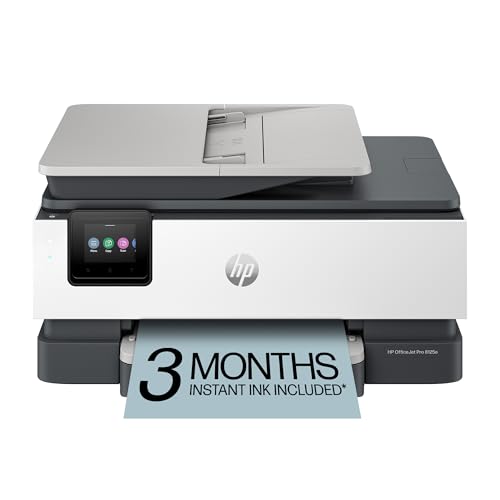
HP OfficeJet Pro 8125e Wireless Duplex All-in-One InkjetBest OverallHP OfficeJet Pro 8125e Wireless Duplex All-in-One InkjetColor inkjet all-in-oneAutomatic two-sidedn/a
Brother DCP-L2640DW Wireless Mono Laser All-in-OneBest Mono LaserBrother DCP-L2640DW Wireless Mono Laser All-in-OneMonochrome laser multifunctionAutomatic two-sidedPrint, scan, copy
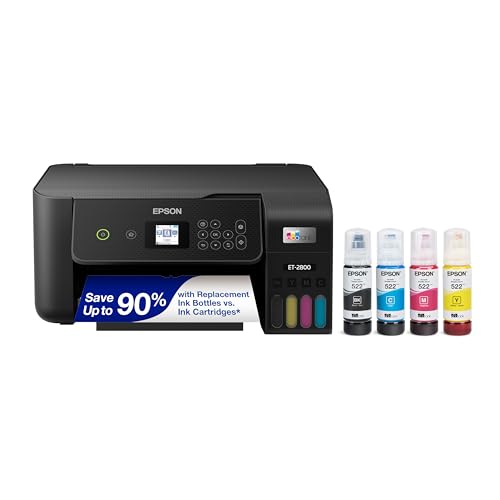
Epson EcoTank ET-2800 Wireless Ink Tank All-in-OneBest ValueEpson EcoTank ET-2800 Wireless Ink Tank All-in-OneRefillable ink tank all-in-onen/aPrint, scan, copy
Canon PIXMA TR4720 Wireless 4-in-1 InkjetBest Feeder Under CanonCanon PIXMA TR4720 Wireless 4-in-1 InkjetCartridge inkjet multifunctionn/aPrint, copy, scan, fax
Canon PIXMA TS6520 Wireless Inkjet with OLED DisplayBest DisplayCanon PIXMA TS6520 Wireless Inkjet with OLED DisplayCartridge inkjet all-in-onen/aPrint, scan, copy
HP Envy 6155 Wireless Duplex All-in-One InkjetBest Duplex ValueHP Envy 6155 Wireless Duplex All-in-One InkjetCartridge inkjet all-in-oneAutomatic two-sidedPrint, scan, copy

A wireless printer joins your home network through Wi-Fi so every laptop, tablet and phone can print without a cable. The convenience is real, but wireless adds a failure point: the printer must stay joined to the router, keep its address and wake from sleep when a job arrives.

What separates a good wireless office printer from a frustrating one is rarely the radio itself. It is how easily the setup completes, what fallback options exist when the network misbehaves and how the printer handles the paper and ink behind the connection.

Before you buy

6 Criteria to Look For Before Buying a Wireless Printer for Home Offices

  1. 01

    Setup that survives router changes

    Most wireless trouble comes after a new router or password. Printers with a display or a guided app, such as the Canon PIXMA TS6520 and HP OfficeJet Pro 8125e, let you rejoin the network without a computer. A printer with no screen forces you to reset and repeat setup.

  2. 02

    Fallback connections

    A good wireless printer also offers USB or Ethernet when Wi-Fi fails. Check the listing for a wired port, because a cable is the cheapest fix for a printer that drops off the network. Buyers often skip this and regret it at the first outage. Among these six, the listings stress wireless and USB, so confirm Ethernet on the exact model if your office is wired.

  3. 03

    Wake-up behavior

    A wireless printer sleeps to save power, so the first job after a quiet period can take a while. Lasers like the Brother DCP-L2640DW usually wake in seconds, while inkjets may run a head check first. If you print on demand, this delay matters.

  4. 04

    Mobile printing support

    Driverless protocols such as AirPrint and Mopria let phones print without installing software, and vendor apps add scanning and status. The Canon TR4720 and HP OfficeJet Pro 8125e lean on their apps. Check what your phones need before you buy.

  5. 05

    Paper handling behind the radio

    Wireless convenience wastes itself if the paper path is weak. The HP OfficeJet Pro 8125e has duplex, a feeder and a 225-sheet tray, while the Epson ET-2800 has none of those. Match features to the jobs your whole household will send.

  6. 06

    Running cost

    A printer used by several people prints more, so ink or toner cost grows. A tank like the Epson ET-2800 or a mono laser like the Brother DCP-L2640DW keeps cost per page low. A cartridge inkjet is cheapest to buy and costliest to run. Add up the pages your household prints in a month, multiply by a realistic cost per page and compare that yearly figure across a laser, a tank and a cartridge machine before you choose.

Detailed reviews

The 6 best wireless printers for home offices, explained

01
HP OfficeJet Pro 8125e Wireless Duplex All-in-One Inkjet
InkjetAuto duplexADF225-sheet tray
Check price on Amazon
Best for: Home offices that print color documents and scan stacks over Wi-Fi.

HP's OfficeJet Pro 8125e is the office-class inkjet in this lineup, and the listing pairs wireless printing with automatic duplex, a document feeder and a 225-sheet input tray. HP's app adds an AI formatting feature that trims web pages and emails so they do not waste paper.

The tradeoff is the HP ecosystem. Setup runs through HP's app and account, and the Instant Ink option bills by page count, so a buyer who dislikes subscriptions should read the terms. Against the Brother DCP-L2640DW it prints color but is slower on pure text.

Ownership favors steady use, which a shared wireless printer provides naturally. Print weekly so the head stays wet, keep a spare set of cartridges and let the app handle firmware notices. When the router changes, rerun the setup from the app rather than guessing at settings.

What works

  • Duplex, feeder and 225-sheet tray in one machine
  • App-based setup and remote printing
  • AI formatting trims wasted web pages
  • Color printing for charts and handouts

Watch out for

  • Setup and features lean on the HP account
  • Cartridge ink costs more per page than tanks
  • Instant Ink subscription needs reading first

Spec sheet

Type
Color inkjet all-in-one
Duplex
Automatic two-sided
Feeder
Automatic document feeder
Input tray
225 sheets
Software
HP app with AI print formatting
02
Brother DCP-L2640DW Wireless Mono Laser All-in-One
Mono laser36 ppmAuto duplexWi-Fi
Check price on Amazon
Best for: Offices that print black and white documents from several devices.

Brother's DCP-L2640DW is a wireless monochrome laser built around steady text output, with up to 36 pages per minute, automatic duplex and scan and copy. The listing highlights flexible, secure connection options for several devices at once, which suits a household where phones and laptops all print.

The sacrifice is color: there is none. Anyone who needs color charts or photos needs a second device or an inkjet such as the HP OfficeJet Pro 8125e. In exchange, a laser stays online with fewer maintenance chores because toner does not dry out.

Ownership is calm. The printer can be idle for weeks and still print the first page cleanly, which matters for a wireless device that wakes on demand. Standard and high-yield toner sizes exist, and the larger cartridge suits a shared printer that several people feed jobs to throughout the week. Keep the paper flat, update firmware when the app asks and keep the printer near the router for a clean signal.

What works

  • 36 pages per minute for long documents
  • Toner does not dry out during idle weeks
  • Multi-device wireless with secure options
  • Automatic duplex and scanning included

Watch out for

  • No color printing at all
  • Flatbed scanner lacks a large feeder
  • Toner firmware policy needs checking

Spec sheet

Type
Monochrome laser multifunction
Speed
Up to 36 pages per minute
Duplex
Automatic two-sided
Connections
Secure multi-device wireless options
Functions
Print, scan, copy
03
Epson EcoTank ET-2800 Wireless Ink Tank All-in-One
Ink tankWi-FiPrint scan copyCompact
Check price on Amazon
Best for: Households that want cheap color printing from several devices.

The ET-2800 gives you Wi-Fi printing and scanning in a compact tank printer, and the refillable bottles cut the running cost far below cartridges. It is the cheapest route here to color printing that does not punish a busy household.

The tradeoff is office features: no feeder, no duplex in the listing and entry-class speed. Wireless setup works through the Epson app, but the printer is slower than the HP OfficeJet Pro 8125e. This suits a family where cost matters more than speed.

Ownership is the tank routine: print weekly, refill carefully and keep bottles capped. Since the printer sleeps between jobs, keep it on the same network band as your computer to avoid slow wake-ups. Place it within a room or two of the router, since a tank printer is heavy once filled and you will not want to carry it around to find a signal. If the machine sits unused for a month, run a nozzle check before an important job.

What works

  • Low running cost through refillable bottles
  • Wi-Fi printing and scanning from devices
  • Compact body for a crowded desk
  • Color documents without cartridge anxiety

Watch out for

  • No feeder or duplex in the listing
  • Slower than office-class machines
  • Needs weekly use to avoid clogs

Spec sheet

Type
Refillable ink tank all-in-one
Wireless
Wi-Fi printing and scanning
Functions
Print, scan, copy
Refill
Cartridge-free bottles
Class
Entry EcoTank
04
Canon PIXMA TR4720 Wireless 4-in-1 Inkjet
InkjetADFFaxWi-Fi
Check price on Amazon
Best for: Home workers who scan forms and print from phones.

Canon's TR4720 is a home office inkjet that adds a feeder and fax to wireless printing, and the listing stresses mobile printing from phones. Its standby draw of 0.8 watts matters for a wireless printer that waits on the network all day.

The tradeoff is ink and speed. It is a cartridge inkjet, so ink per page is above a tank's, and it lacks the display of the Canon PIXMA TS6520. If you copy stacks, the feeder earns its place.

Ownership follows the usual inkjet routine, and setup runs through Canon's app. Print a page weekly and keep the cartridges in date. When the Wi-Fi changes, the app guides you through reconnecting. Since the cartridges are small, keep a spare black and a spare color so a stalled job never waits on a delivery. The feeder is the feature to test first on arrival: load a three page form, copy it and confirm the pages come through straight.

What works

  • Feeder and fax in a compact inkjet
  • Low standby power at 0.8 W
  • Mobile printing from phones
  • Four functions in one body

Watch out for

  • Cartridge ink raises running cost
  • No display beyond basic controls
  • Fax rarely used at home

Spec sheet

Type
Cartridge inkjet multifunction
Functions
Print, copy, scan, fax
Feeder
Automatic document feeder
Mobile
Mobile printing and Canon app
Power
0.8 W standby
05
Canon PIXMA TS6520 Wireless Inkjet with OLED Display
InkjetOLED display2-cartridgeWi-Fi
Check price on Amazon
Best for: Households that want a visible connection status and simple setup.

The TS6520 puts a small OLED display on the front, which makes the wireless setup and later reconnection easier than on light-only printers. The listing emphasizes easy setup from a phone or computer, and the display shows connection state.

The tradeoff is paper handling: there is no feeder and no automatic duplex in the listing. Set against the HP OfficeJet Pro 8125e, you give up office features for a lower tier. It is a solid household wireless printer. The display also helps a non-technical family member, because a message on the screen tells them whether the problem is ink, paper or the network instead of leaving them to read blinking lights. Against the Canon PIXMA TR4720, you choose a display over a feeder, so decide which of the two you would use daily.

Ownership is simple: two cartridges, weekly printing and firmware updates through the app. If the network drops, the display tells you the printer is offline, which cuts guessing.

What works

  • OLED display shows connection and ink state
  • Phone or computer setup is simple
  • Two-cartridge replacement is easy
  • Lower tier than office inkjets

Watch out for

  • No feeder or duplex in the listing
  • Color cartridge empties quickly
  • Small display is not a touchscreen

Spec sheet

Type
Cartridge inkjet all-in-one
Display
1.42 inch OLED
Cartridges
Black and color
Functions
Print, scan, copy
Setup
Smartphone or computer
06
HP Envy 6155 Wireless Duplex All-in-One Inkjet
InkjetAuto duplex100-sheet trayWi-Fi
Check price on Amazon
Best for: Households that want duplex and phone printing in a small body.

HP's Envy 6155 aims at homes that print everyday color pages and adds automatic duplex and a 100-sheet tray to a small wireless body. Setup runs through HP's app.

The gap against the OfficeJet Pro 8125e is the lack of a feeder and the smaller tray, which is the reason for its lower price tier. Ink is cartridge-based, so cost per page is higher than a tank.

Ownership centers on the app and the subscription choice. Read the Instant Ink terms, print weekly and keep paper dry. For a household with a few devices, it is the least fussy HP. Its 100-sheet tray holds a small ream, so a student can print a long paper without standing guard. If you later need to scan stacks, the step up is the HP OfficeJet Pro 8125e, which keeps the same app and adds a feeder.

What works

  • Automatic duplex in a compact printer
  • 100-sheet tray for family jobs
  • HP app handles setup and updates
  • Print, scan and copy included

Watch out for

  • No feeder for stack scanning
  • Cartridge ink costs more per page
  • Instant Ink trial leads to a subscription

Spec sheet

Type
Cartridge inkjet all-in-one
Duplex
Automatic two-sided
Input tray
100 sheets
Functions
Print, scan, copy
Ink plan
Three month Instant Ink trial

Spec sheet decoder

What the numbers on the box really mean

The specs manufacturers lead with, translated into what they tell you about real-world performance.

Wi-Fi band

Wi-Fi bands are 2.4 GHz and 5 GHz. The 2.4 GHz band reaches farther, while 5 GHz is faster and less crowded.

Watch forCheck each listing, because some entry models support only 2.4 GHz.

Standby power

Standby watts is the draw while the printer waits on the network. Low numbers suit a device left on all day.

Watch forThe Canon TR4720 lists 0.8 W in standby.

Mobile printing

Mobile printing lets a phone send a job without a computer. It relies on the vendor app or a standard protocol.

Watch forThe Brother DCP-L2640DW lists mobile printing with secure options.

Input tray sheets

Tray capacity is the paper loaded at once. A bigger tray reduces refills for shared use.

Watch forThe HP OfficeJet Pro 8125e lists 225 sheets and the HP Envy 6155 lists 100.

Pages per minute

Speed is the rate once printing begins. Wireless handshake time is separate.

Watch forThe Brother DCP-L2640DW lists up to 36 ppm.

Methodology

How We Evaluated These Wireless Printers for Home Offices

Network setup

We looked at how each printer joins and rejoins a network, from the OLED display on the Canon TS6520 to the app-led process on the HP OfficeJet Pro 8125e. Guided setup scored higher. The presence of a wired fallback was noted.

Paper and scan handling

We compared duplex, tray size and feeders, with the HP OfficeJet Pro 8125e leading on all three. Entry models such as the Epson ET-2800 were judged by their narrower scope. Simpler paths earned credit for jam resistance.

Print technology

We weighed laser, cartridge inkjet and ink tank for a shared wireless printer. The Brother DCP-L2640DW's 36 ppm laser was set against tank economics. Cost per page counted heavily.

Mobile workflow

We checked mobile printing, apps and remote printing. Vendor account requirements were flagged. Driverless options were preferred.

Ownership

We considered idle behavior, firmware and subscription terms. A laser tolerates long gaps while inkjets need weekly use. Warranty and supplies were weighed.

Decision guide

How to Choose the Right Wireless Printers for Home Offices

By Household

SituationPickWhy
Color office work with stacksHP OfficeJet Pro 8125eDuplex, feeder and 225-sheet tray
Black text from many devicesBrother DCP-L2640DW36 ppm laser with duplex
Cheap color for a familyEpson EcoTank ET-2800Refillable ink tank
Scan forms from the deskCanon PIXMA TR4720Feeder and fax
Visible connection statusCanon PIXMA TS6520OLED display
Duplex on a small budgetHP Envy 6155Duplex in a compact body

By Budget

TierPickWhy
Lowest tierCanon PIXMA TS6520Cheapest display model
Low tierCanon PIXMA TR4720Adds a feeder
Lower mid tierHP Envy 6155Adds duplex
Mid tierHP OfficeJet Pro 8125eOffice-class inkjet
Upper tierEpson EcoTank ET-2800Tank design for low running cost
Top tierBrother DCP-L2640DWFast laser with duplex and scanning

Wireless vs Wired

Wireless

Wi-Fi lets every device print without cables, and the HP OfficeJet Pro 8125e and Canon TS6520 simplify setup with an app or display. The cost is occasional dropouts after router changes.

Wired

A cable or Ethernet link never drops, which suits a printer on a fixed desk. Check the listing, since many entry models offer USB only as the wired option.

Pick wireless for phones and laptops; add a cable if the printer sits beside one computer.

Technology

PreferencePickWhy
Laser, black textBrother DCP-L2640DWToner does not dry out
Tank, low color costEpson EcoTank ET-2800Refill bottles
Cartridge, duplexHP OfficeJet Pro 8125eOffice features
Cartridge, displayCanon PIXMA TS6520Easy status

For Phone Printing Specifically

Look for

Look for a guided app, driverless printing support and a printer that wakes quickly. A display helps when the connection drops.

In this comparison

The HP OfficeJet Pro 8125e and Canon TS6520 fit best, one for its app and the other for its display. The Brother DCP-L2640DW wakes quickly for on-demand jobs.

When to Spend More

Spend more if

Spend more if several people print daily, where the HP OfficeJet Pro 8125e or Brother DCP-L2640DW handles the load.

Save if

Save if one person prints a few pages a week, where the Canon TS6520 or HP Envy 6155 is enough.

Ownership

Maintenance schedule

The upkeep that decides whether this machine lasts two seasons or ten.

TaskIntervalWhy it matters
Reserve the printer addressOnceA fixed address in the router stops the printer from moving after a restart. It prevents most offline errors.
Update firmwareWhen promptedUpdates fix Wi-Fi bugs and security gaps. Read notes about third-party ink first.
Print a pageWeekly on inkjetsKeeps nozzles wet. A short test page is enough.
Reconnect after router changesWhen neededA new password or router drops the link. Use the app or display to rejoin.
Dust the ventsQuarterlyHeat from a printer left on all day can build up. A soft brush clears dust.

FAQ

Frequently Asked Questions

Why does my wireless printer keep going offline?

Most often the router assigned a new address after a restart, or the printer slept and lost its link. Reserving the address in the router and keeping firmware current fixes most cases.

Do I need dual-band Wi-Fi?

It helps, because the printer can use the less crowded band. If your router combines both bands under one name, an older 2.4 GHz-only printer still works.

Is wireless printing secure?

Use a strong network password and keep firmware current, since updates close known holes. Some models list secure multi-device options, and you can turn off unused services such as remote email printing if you never use them. Put the printer on the same network as your trusted devices, not on a guest network.

Should I choose laser or inkjet for wireless use?

A laser such as the Brother DCP-L2640DW wakes quickly and tolerates idle weeks. An inkjet prints color and photos but needs weekly use.

Can I print without a router?

Many models offer a direct connection from a phone, but check the listing for the feature, usually called Wi-Fi Direct or a similar name. The printer then broadcasts its own network that the phone joins for the job. A USB cable to a computer is the fallback if the home network is down, and it needs no setup beyond the driver.

Is a subscription ink plan wise for wireless printers?

Only if your printing is steady and you read the terms. Some plans lock the printer to the subscription.

Bottom line

The short version

Browse more wireless printers for home officeson Amazon →
James Miller, Lead Machine Editor

About the author

James Miller

Lead Machine Editor, MachineFanatic

James Miller leads MachineFanatic's buying guides, turning spec sheets, manuals and owner feedback into clear verdicts on power tools, outdoor power equipment, shop machines and kitchen machines.

More from James →

Keep reading

Related guides