Amazon affiliate links - we earn a commission.Affiliate disclosure

Buying guide · 12 min read · Updated 2026-11-18

Best Color Label Printers (2026)

Four color label printers compared: pigment inkjet, dye-sublimation sticker cutter and a compact red and black handheld, with real widths, dpi and speeds.

James MillerBy James MillerLead Machine Editor4 machines comparedSpec-sheet verified
Best Color Label Printers

At a glance

Our top picks

Color label printing covers three different technologies that look alike in marketing: inkjet, dye-sublimation and two-color thermal. Each makes a different kind of label and costs a different amount to keep running.

The honest question is how much color you really need. A product label with a logo and a photo needs a real color engine, while a shelf tag with one red accent does not, and buying the larger machine for the smaller job is the common mistake.

Before you buy

6 Criteria to Look For Before Buying a Color Label Printer

  1. 01

    How much color you need

    Full-color printers like the Epson CW-4000 and Primera LX500 print every shade, while the NIIMBOT B21 Pro prints only red and black. A shelf tag with a red price flag does not need inkjet. Over-buying here means paying for ink and upkeep you will never use. A useful test is to list your next ten labels and count how many carry a photograph or more than two colors; if the answer is zero or one, the cheaper two-color route is the honest choice.

  2. 02

    Ink or thermal technology

    The CW-4000 uses CMYK pigment ink, the LX500 uses inkjet at 4800 dpi, the PixCut S1 uses thermal dye-sublimation and the B21 Pro uses two-color thermal. Inkjet labels need ink and clean nozzles. Thermal units need matched rolls instead.

  3. 03

    Print speed in practice

    The CW-4000 is listed at up to 4 inches per second, which suits batches. The LX500 trades some speed for 4800 dpi detail. Craft machines like the PixCut S1 take longer per sticker because they also cut an outline.

  4. 04

    Label width and length

    The LX500 prints up to 4 inches wide and 24 inches long, covering wrap-around bottle labels. The B21 Pro is a pocket unit with narrow rolls. Measure your largest label first, since you cannot print wider than the head. Remember to add the bleed or margin the printer needs, because a label designed edge to edge on a 4 inch head will lose a sliver on each side if the stock is the same width as the head.

  5. 05

    Durability of the print

    Pigment ink in the CW-4000 resists smearing and fading better than dye ink. Dye-sublimation prints on the PixCut S1 look smooth but are made for stickers, not outdoor tags. Water, sun and rubbing decide which technology to choose. A label on a bottle that lives in a refrigerator sees condensation daily, while a label on a shelf box sees only dust, and the second can be printed on almost anything.

  6. 06

    Supplies and ownership cost

    An inkjet printer needs ink and regular use so nozzles stay open. A two-color handheld needs matched label rolls and app support. Count the supply cost per label, not just the machine. A cheap printer with expensive matched media can cost more over a year than a pricier inkjet that uses ordinary label stock, so price a hundred labels before you buy the printer. Also ask what happens when the maker retires the media, because a craft or thermal model with a discontinued roll becomes a paperweight.

Detailed reviews

The 4 best color label printers, explained

01
Epson ColorWorks CW-4000 matte inkjet label printer
Pigment CMYK ink4 ipsAuto cutterMatte media
Check price on Amazon
Best for: Small producers who print durable color labels in steady batches.

Pigment ink is why this one leads. Pigment particles sit on top of the paper and resist smearing and fading better than dye ink, which matters when a label rides in a delivery bag or sits on a shop shelf. The matte media finish also reads well under store lighting, without the glare of a glossy label.

A quoted 4 inches per second makes it a production tool and not a craft one. That is a fast rate for a color printer, and the automatic cutter separates each finished label without the hand trimming you would do on the Primera LX500. Confirm label widths and driver support with your label supplier before you order.

Expect inkjet upkeep: use the printer regularly so the nozzles do not dry, keep ink cartridges sealed until needed and avoid storing the printer in a cold garage. If it sits idle for weeks, run the head-cleaning cycle before a real job. For tiny offices that print a few labels a month, a cheaper unit is easier to live with, but for steady runs this is the tool. One practical point on media: the matte finish takes pigment ink without the beading you can see on glossy stock, so stay with matte rolls unless the label supplier states glossy is supported. Ink cartridges are a separate purchase, and a spare set on the shelf avoids a stalled order on a busy day.

What works

  • Pigment ink resists smearing and fading
  • Up to 4 ips is quick for color
  • Auto cutter finishes each label
  • Matte media reads well in store light

Watch out for

  • Inkjet nozzles dry if left idle
  • Ink supplies add running cost
  • Listing gives few detailed specs

Spec sheet

Ink type
CMYK pigment
Print speed
Up to 4 inches per second
Cutting
Automatic label cutter
Finish
Matte media
Class
Desktop inkjet label printer
02
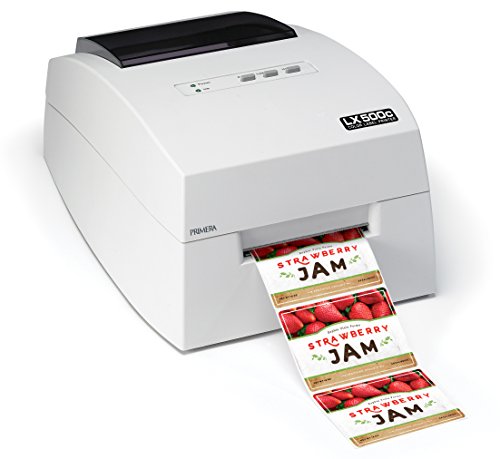
Primera LX500 color label printer, 4 inch, 4800 dpi
4800 dpi4 inch wide24 inch longBuilt-in cutter
Check price on Amazon
Best for: Makers who sell products with photographic or gradient labels.

Detail is where the LX500 outshines the rest. At 4800 dpi it produces labels with smooth gradients and sharp small text, so a candle, soap or sauce label with a photographic background looks professional instead of speckled.

It prints on labels up to 4 inches wide and up to 24 inches long, so you can make a wrap-around bottle label as easily as a small jar sticker. Compared with the CW-4000, the speed is slower and there is no pigment-ink claim in the listing, so its edge is image fineness rather than throughput. The built-in cutter trims each label, and a one-year warranty is a small reassurance.

Use it the way you would use any inkjet: print something every week, store spare ink out of direct sun and match the label stock to the ink type, since glossy or matte finishes behave differently. If you are doing 50 labels per week, this is comfortable. If you need 500 a day, step up. The 24 inch length limit is worth remembering for tall bottles, since a label longer than that has to be split into two panels. Many sellers also run a short test on plain paper first, because color on a screen rarely matches color on a coated label, and a quick adjustment of the profile saves a sheet of expensive stock. Keep the lid closed between jobs so dust stays off the paper path.

What works

  • 4800 dpi gives smooth color and sharp text
  • Labels up to 4 by 24 inches
  • Built-in cutter trims each label
  • One-year warranty

Watch out for

  • Slower than a production inkjet
  • Ink supply is a recurring cost
  • Heavier than thermal handhelds

Spec sheet

Resolution
4800 dpi
Maximum label width
4 inches
Maximum label length
24 inches
Cutter
Built in
Warranty
1 year
03
Liene PixCut S1 Inspire Kit sticker printer and cutter
Dye-sublimationPrint and cutAI extractionKit
Check price on Amazon
Best for: Crafters making shaped stickers and decorative labels.

Printing and cutting in one pass is the idea behind the PixCut S1. Instead of printing a sheet and then cutting each sticker by hand, the machine prints the design and cuts the outline, so a decorative sticker or planner label ends up shaped and ready to peel.

It uses thermal dye-sublimation, a process that transfers dye by heat and gives smooth, photographic tones. AI image extraction helps by lifting a subject out of a photo for the cutter to trace, which is handy for craft work. This is a creative machine more than a business label machine, so compare it to the CW-4000 if you need labels that go through a lot of handling.

Plan on kit-specific media, because dye-sublimation needs matched paper and film. Keep the media sealed, since humidity affects it, and avoid leaving the printer in a hot window. The Inspire kit bundles starter supplies, which helps in the first month of use. The cutter is guided by the printed outline, so a clean, high-contrast design cuts more cleanly than a busy photo with soft edges. Expect a learning curve while you find which images extract well, and keep spare cutting media on hand because a failed trace uses up a sheet. A sticker that will live on a water bottle or a planner cover is the sweet spot, while anything that needs to survive weather should be printed on a different machine.

What works

  • Prints and cuts in a single step
  • Dye-sublimation gives smooth photo tones
  • AI extraction traces subjects for cutting
  • Starter kit includes supplies

Watch out for

  • Needs matched kit media
  • Not designed for rough handling
  • Slower than a pure label printer

Spec sheet

Technology
Thermal dye-sublimation
Function
Print and cut in one step
Software
AI image extraction
Use
Stickers, crafts, custom labels
Package
Inspire kit
04
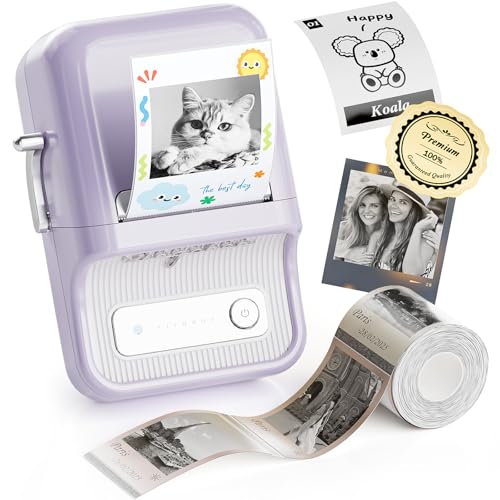
NIIMBOT B21 Pro 300 dpi red and black label printer
300 dpiRed and black322 g1500 mAh
Check price on Amazon
Best for: Offices and shops that want a red accent on labels without a big machine.

Small enough to fit in a jacket pocket, the B21 Pro prints in two colors, red and black, at 300 dpi. That limits the palette but covers the common office and shop uses: red for warnings, expiry dates or priority flags, with sharp black text for the rest.

At 322 grams and 130 by 94 by 61 millimeters, it weighs less than a bottle of water. The 1500 mAh battery supports portable use, and the app handles scanning, image recognition and batch printing, which makes inventory labeling quicker than typing each one. The trade against the CW-4000 and LX500 is that there is no real full-color range here.

Two-color printing needs the matching label rolls, so you cannot swap in random stock. Keep the label compartment closed to keep dust out, charge the battery before heavy jobs and expect app-dependent features. If the app is dropped, the printer loses many of its features, so check that the maker keeps updating it. At roughly the weight of a water bottle it is easy to carry between a stockroom and a counter, which is the real advantage of a thermal handheld over any inkjet. Expect printed red to be a warm orange-red rather than a deep crimson, because the thermal layer sets the shade, and test one label before you commit to a whole roll of warning tags.

What works

  • Red and black on a 322 g body
  • 300 dpi gives crisp small text
  • App scanning and batch printing
  • 1500 mAh battery for portable use

Watch out for

  • Only two colors, not full color
  • Requires matched label rolls
  • Features depend on the phone app

Spec sheet

Resolution
300 dpi
Colors
Red and black dual color
Weight
322 g
Size
130 x 94 x 61 mm
Battery
1500 mAh

Spec sheet decoder

What the numbers on the box really mean

The specs manufacturers lead with, translated into what they tell you about real-world performance.

dpi

Dots per inch is how finely a printer places color. Higher numbers give smoother gradients and sharper small text.

Watch forThe LX500 lists 4800 dpi while the B21 Pro lists 300 dpi, but they use different technologies, so they are not directly comparable.

Pigment vs dye ink

Pigment sits on the paper surface and resists fading and smearing. Dye soaks in and gives vivid color but is less durable.

Watch forThe CW-4000 lists CMYK pigment ink, which matters for labels that get handled.

Dye-sublimation

A heat process that turns dye into a gas that bonds with a coated medium. It gives smooth photo tones without droplets.

Watch forThe PixCut S1 uses it, so it needs matched media.

Two-color thermal

A thermal head that can print black and a second color on special media. It gives accent color without ink.

Watch forThe B21 Pro prints red and black only.

Print and cut

The machine prints a design and cuts around its outline in one run. It saves manual trimming.

Watch forThe PixCut S1 does this, while the LX500 and CW-4000 use straight cutters.

Methodology

How We Evaluated These Color Label Printers

Color capability

We separated full-color printers from two-color units and treated the difference as a real category. The CW-4000, LX500 and PixCut S1 were compared on color range. The B21 Pro was judged for its red and black job.

Print durability

We considered ink type and technology as indicators of label life. Pigment on the CW-4000 counted for durability. Dye-sublimation on the PixCut S1 counted for smoothness more than toughness.

Speed and detail

Listed speeds and dpi were compared where the data exists. The CW-4000 at 4 ips and the LX500 at 4800 dpi represent two priorities. We did not equate high dpi with high throughput.

Size and portability

The 322 g B21 Pro sits at one end and the desktop inkjets at the other. Label width and length limits were compared, with the LX500 at 4 by 24 inches. A portable unit was not marked down for being small.

Ownership reality

Ink, matched media and app support were weighed as ongoing cost. Based on owner feedback patterns, inkjet nozzles dry when idle. The result favors the printer that matches your actual print frequency. A weekly printer suits inkjet, and a once-a-month printer is better served by a thermal unit with no nozzles to dry. We also noted that three of the four models depend on matched media, so the cost of the next roll counted as part of the verdict, not as an afterthought.

Decision guide

How to Choose the Right Color Label Printers

By Color Need

SituationPickWhy
Durable full-color product labelsEpson CW-4000Pigment ink and a fast engine
Photo-quality packaging labelsPrimera LX5004800 dpi on labels up to 4 by 24 inches
Shaped craft stickersLiene PixCut S1Prints and cuts outlines
Red flags on black textNIIMBOT B21 ProRed and black at 300 dpi

By Budget

Budget tierPickWhy
Lowest costNIIMBOT B21 ProPocket two-color unit
Mid tierLiene PixCut S1Craft printer with built-in cutter
Upper tierPrimera LX500Photo-quality desktop inkjet
Highest tierEpson CW-4000Production inkjet with pigment ink

Inkjet vs Thermal Color

Inkjet

The CW-4000 and LX500 print the full range of color. They need ink and regular use. The CW-4000 adds pigment durability.

Thermal

The PixCut S1 and B21 Pro use heat. They have no ink to dry, but they need matched media. The B21 Pro gives only red and black.

Choose inkjet for full-color business labels; choose thermal for craft stickers or accent-color tags.

Desktop vs Portable

PreferencePickWhy
Fixed bench, big labelsPrimera LX5004 by 24 inch capacity
Fixed bench, speedEpson CW-40004 ips with auto cutter
Craft deskLiene PixCut S1Print and cut in one
Carry in a bagNIIMBOT B21 Pro322 g, battery powered

For Small Product Sellers Specifically

Look for

A label that survives handling, enough width for your jar or bottle and ink that does not smear. Plan for a few hundred labels a month.

In this comparison

The CW-4000 is the durable choice and the LX500 gives the best detail. The PixCut S1 suits decorative stickers, and the B21 Pro handles accent tags.

When to Spend More

Spend more if

You print weekly and sell the product. The CW-4000 or LX500 repays the cost in label quality and fewer reprints.

Save if

You label things occasionally. The B21 Pro covers color accents at a small size and cost.

Ownership

Maintenance schedule

The upkeep that decides whether this machine lasts two seasons or ten.

TaskIntervalWhy it matters
Print weekly on inkjetsWeeklyRegular use keeps ink moving in the nozzles. Idle printers clog and waste ink on cleaning cycles.
Run head cleaningAfter idle weeksA cleaning cycle clears dried ink. Do it before a real job, not during.
Store media sealedOngoingHumidity affects matched thermal and dye-sublimation media. Keep spare rolls in their bags.
Charge portable unitsBefore long jobsThe B21 Pro's 1500 mAh pack runs down with heavy batch printing. Charge it before a big run, and carry a spare roll so a long batch of warning tags does not stop halfway.
Check the app and driverQuarterlyTwo-color and craft models rely on current software. Outdated drivers cause connection errors.

FAQ

Frequently Asked Questions

Which is better for business labels, inkjet or thermal?

Inkjet such as the Epson CW-4000 gives full color and pigment durability. Thermal units are cheaper to run but are limited to two colors or craft use.

Is 4800 dpi really better?

It gives smoother gradients and sharper small text on the Primera LX500, but it comes with slower speed. For plain logos and barcodes, the extra dpi may not be visible.

Will color labels fade?

Pigment inks fade less than dye inks, and matte coated labels resist smearing. Direct sunlight will still shorten the life of any color print. Printed color also looks duller than the screen, because screens emit light and labels only reflect it, so print a test on the actual stock and keep the adjusted settings for repeat orders. Inkjet models like the CW-4000 and LX500 need coated label stock made for them, not plain paper, and the thermal units need their own matched media.

Can the B21 Pro print in full color?

No. It prints red and black only, which suits flags and warnings but not photos or logos with many hues.

Do inkjet label printers dry out?

Yes, if left idle for weeks. Print a test page weekly or run the cleaning cycle to keep the nozzles open.

What is the PixCut S1 best for?

It suits crafts, stickers and decorative labels where print and cut are done in one step. It is not aimed at rough-use product labels.

Bottom line

The short version

Browse more color label printerson Amazon →
James Miller, Lead Machine Editor

About the author

James Miller

Lead Machine Editor, MachineFanatic

James Miller leads MachineFanatic's buying guides, turning spec sheets, manuals and owner feedback into clear verdicts on power tools, outdoor power equipment, shop machines and kitchen machines.

More from James →

Keep reading

Related guides