Amazon affiliate links - we earn a commission.Affiliate disclosure

Buying guide · 13 min read · Updated 2026-11-18

Best iPhone Label Printers (2026)

Six Bluetooth label printers for iPhone owners compared on iOS apps, permissions, battery use, sticker versus shipping size and keeping a link in your pocket.

James MillerBy James MillerLead Machine Editor6 machines comparedSpec-sheet verified
Best iPhone Label Printers

At a glance

Our top picks

Printing from an iPhone is a Bluetooth conversation between a small app and a small machine, and most of what goes wrong happens in that conversation. Permissions get switched off, the app is closed in the background, or the phone is in a power-saving mode that quietly slows the radio.

Because the phone is always in a pocket, the best printers are the ones that survive being treated casually. This guide ranks six iPhone-friendly printers on how forgiving they are, and separates stickers from shipping labels so you buy the size you actually print.

Before you buy

6 Criteria to Look For Before Buying an iPhone Label Printer

  1. 01

    Shipping labels versus stickers

    Only the KNAON Y41BT prints 4x6 shipping labels. The Phomemo D30, SUPVAN E11, Nelko P21, NIIMBOT D110 and NADAIIN D20 print small labels or stickers. If you sell online from an iPhone, the size decides everything. Buy the shipping size first, and add a sticker printer later if you need one. A very common mistake is to buy a pocket sticker printer for a small online shop, find that it cannot print a carrier label and end up buying again. Write down the largest label you expect to print and compare it with the printer's width before ordering.

  2. 02

    iOS permissions and background behavior

    An iPhone asks for Bluetooth permission the first time a label app runs, and a refusal means the printer never appears. iOS also suspends apps in the background, which can interrupt a long batch. Keep the app open during printing and check the permission in Settings if the printer disappears. This is the commonest iPhone printing complaint. A related trap is Focus modes and notification settings that hide the pairing prompt, so a printer seems to ignore the phone when the phone is simply not showing the question. If the prompt never appears, delete and reinstall the app and approve the permission when it asks.

  3. 03

    Power-saving modes

    Low Power Mode can slow or pause Bluetooth activity, which makes a printer look unreliable. If a label stops mid-batch, turn Low Power Mode off and try again. The SUPVAN E11's keyboard sidesteps the issue entirely. For a phone that is nearly always in power saving, choose a printer with another route. Battery saver habits are easy to forget about, so the first thing to check when a printer misbehaves on a low phone battery is whether power saving has quietly switched on. Charging the phone above the warning level before a batch is the cheapest fix.

  4. 04

    Batch printing

    The NIIMBOT D110 states batch printing from its app, which saves many taps when you label a whole pantry. Without it, each label is a separate print command. If you print dozens at a time, check for a batch or copies option in the app before buying. Also look for a way to import a list from a spreadsheet or the clipboard, since typing thirty labels by hand is where the time actually goes. A printer with a fast head and a slow app is not fast at all.

  5. 05

    Camera verification

    An iPhone's camera reads QR codes natively, so you can scan a printed label immediately and confirm it works. This is a free quality check for any printer that makes codes. If the code fails on the phone camera, it will fail on other scanners, so fix the print before applying a roll. Hold the phone steady about a hand's width from the label in even light, and avoid reading it under a glossy lamp, which washes out the code. Do this on the first label of every new roll, not just the first one you ever print.

  6. 06

    Consumables and fading

    All five sticker printers use direct thermal or thermal tape, which fades with heat and sun. The KNAON also uses direct thermal. A label on a windowsill will not last a season. Store spare rolls in a closed drawer and avoid hot cars. If you want a label to last on a jar that goes through the dishwasher, direct thermal paper is the wrong choice, and you would need a printer using laminated tape or a transfer ribbon. For pantry shelves the fading is slow and rarely matters.

Detailed reviews

The 6 best iphone label printers, explained

01
KNAON Y41BT 4x6 Bluetooth shipping label printer
4x6 direct thermaliOS BluetoothUSB fallbackApp templates
Check price on Amazon
Best for: iPhone sellers who print shipping labels from the phone.

An iPhone sells a parcel, buys the postage and shares the label to an app, and the KNAON's iOS Bluetooth route closes that loop in a pocket-sized workflow. It prints 4x6 labels, the size carriers use, which makes it the only true shipping printer in this lineup.

The USB cable is what lifts it above the sticker printers: when Bluetooth falters, a computer and a cable still print the label. The listing mentions templates for custom labels, which helps with return notes and handling stickers. Compared with the Phomemo D30, it is larger and wants a table, not a pocket.

Keep the iPhone's Bluetooth permission on for the app, avoid force-closing the app mid-batch and wipe the head after a few rolls. If a print fails, check Low Power Mode first, since it can throttle background Bluetooth. For a seller who ships a handful of parcels a day, the whole flow takes under a minute: buy postage in the shipping app, tap share, choose the printer app and let the label come out. Keep a roll of spare labels in the same drawer, because running out with a buyer waiting is the one failure no setting can fix.

What works

  • Prints 4x6 labels from an iOS device
  • USB route if Bluetooth falters
  • Templates for return and handling labels
  • Works with Mac, Windows and ChromeOS by cable

Watch out for

  • Needs a table rather than a pocket
  • Pairing may need repeating after iOS updates

Spec sheet

Label size
4x6 inch labels
Print method
Direct thermal, no ink
Wireless
Bluetooth for iOS and Android
Wired
USB for macOS, Windows 7 and up, ChromeOS
Extras
Pre-designed label templates
02
Phomemo D30 Bluetooth mini label printer
Continuous or fixed tapePrint Master app4000+ iconsInkless thermal
Check price on Amazon
Best for: Home users who label drawers, jars and cables from an iPhone.

For labeling jars, cables and drawers from the couch, the D30 does exactly what an iPhone owner expects. It supports continuous tape and fixed-length labels, and the Print Master app brings thousands of icons and hundreds of templates to a phone screen. Everything fits in a pocket.

Its limit is narrow tape, so anything needing a long line of text or a barcode of any size runs out of room. It also shares the iPhone issues of any Bluetooth printer, with the app needing to stay alive in the background. Against the NIIMBOT D110, it has a larger icon library.

Keep a spare roll in the pouch, wipe the head occasionally and re-pair after a major iOS update. Many owners find that a printer this small earns its place in the first week of an organizing project, since a labeled shelf is far easier to keep tidy than an unlabeled one. A consistent label style, such as an icon on the left and a short word on the right, makes a whole cupboard look finished.

What works

  • Pocket-sized body
  • Two tape modes
  • Large icon and template library
  • Inkless BPA-free printing

Watch out for

  • Narrow tape only
  • Direct thermal prints fade

Spec sheet

Print method
Direct thermal, BPA-free, no ink
Tape modes
Continuous and fixed-length tape
App
Print Master on iPhone
Library
4000+ icons and 800+ templates
Size
Pocket-sized mini printer
03
SUPVAN E11 keyboard and Bluetooth label maker with 4 tapes
Keyboard and app1200 mAh battery0.2 in margins30+ fonts
Check price on Amazon
Best for: iPhone owners who also want a printer that works with no phone.

Not every label needs the phone, and the E11 acknowledges that with a keyboard on the body. Type a name, press print and the label comes out, with no iOS permissions to worry about. When you want fonts and symbols, the Bluetooth app on the iPhone adds them.

The listing claims about a month of use per charge from a 1200 milliamp-hour battery, and it prints with only about a 0.2 inch margin, so a short label does not waste a hand's width of tape. Four tapes come in the bundle. The cost of the tape format is a higher price per inch than thermal rolls.

Charge it monthly and keep the cutter clean. A keyboard printer is a good companion to an iPhone because it handles the boring repeat labels quickly, leaving the phone free for the designs that really need pictures. If you share the printer with a child or a partner, nobody needs to install an app to use it, which removes a surprising amount of household friction.

What works

  • Keyboard prints with no phone
  • Battery claims up to a month per charge
  • Small 0.2 inch margins
  • Four tapes included

Watch out for

  • Tape costs more per inch
  • Narrow label width

Spec sheet

Input
Keyboard or Bluetooth app
Battery
1200 mAh, up to about a month per charge
Margins
About 0.2 inch
Fonts and symbols
30+ fonts and 660+ symbols
In the bundle
Four tapes
04
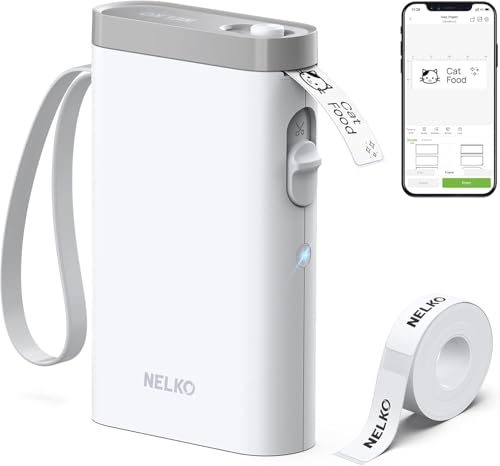
Nelko P21 handheld Bluetooth label printer
BPA-free thermaliOS and AndroidHalf the weight3-step pairing
Check price on Amazon
Best for: iPhone owners who want a light, simply set-up sticker printer.

Nelko spells out the pairing in steps, beginning with downloading the Nelko app from the iOS store, which suits an iPhone owner who dislikes hunting through a manual. The P21 is described as half the weight and size of traditional label makers, and its BPA-free direct thermal stickers come out quickly.

It is a pure app printer, so it stops when the app fails and it has no keyboard. In return it is light enough to forget in a bag. Compared with the Phomemo D30, it feels like a more finished product with a clearer setup path.

Keep the app current, store the roll cool and watch for fading on labels left in sun. The three-step setup is the kind of detail that matters on the day the box arrives, because a printer that pairs in two minutes gets used and one that needs an evening of fiddling ends up in a drawer. Do the first pairing near the router and the phone charger so nothing interrupts it.

What works

  • Spelled-out iOS app pairing
  • About half the weight of traditional machines
  • BPA-free direct thermal
  • High-speed printing chips

Watch out for

  • App is the only way to print
  • Prints fade in sun

Spec sheet

Print method
BPA-free direct thermal
Phones
iOS and Android through the Nelko app
Weight
About half that of traditional label makers
Pairing
Download the app, then connect over Bluetooth
Chips
High-speed printing chips
05
NIIMBOT D110 upgraded mini label maker, 203 dpi
203 dpiBatch printingNIIMBOT appBPA-free thermal
Check price on Amazon
Best for: iPhone owners who print many small labels in one session.

The upgraded D110 adds batch printing from the NIIMBOT app, which is the feature an iPhone owner with a long list of labels will notice. Print a dozen pantry labels in one go instead of tapping print twelve times. The listing states 203 dpi and BPA-free direct thermal printing, and it calls this the 2026 version.

The small body suits a pocket, and the app drives it over Bluetooth. It is the same family as the D110 that appears in other lists, but this listing's upgrades focus on organization jobs at home. It still prints narrow labels, so long text and barcodes are a poor fit.

Keep a spare roll, update the app and clean the head now and then. A tip for batch jobs is to line up the labels in a list first, checking spelling on the phone screen, then print them in one go so the printer runs unattended while you do something else. A misspelled label is the commonest waste of a small roll.

What works

  • Batch printing from the app
  • 203 dpi inkless printing
  • Small pocketable body
  • BPA-free thermal

Watch out for

  • Narrow labels only
  • Direct thermal prints fade

Spec sheet

Print method
BPA-free direct thermal
Resolution
203 dpi
Batch
Supports batch printing from the app
Connection
Bluetooth with the NIIMBOT app
Version
2026 upgraded design
06
NADAIIN D20 mini sticker printer with 3 rolls
Up to 2 in wideBlack onlyContinuous paper3 rolls included
Check price on Amazon
Best for: Crafters and families who print decorative stickers from an iPhone.

NADAIIN's D20 aims at fun more than function. It is a mini sticker printer controlled from a phone app, with continuous paper up to 2 inches wide and a black-only retro look. Three rolls of paper come in the bundle, which gives an iPhone owner a lot of experimenting before the first reorder.

It has the widest paper here among the pocket machines, so it fits a small barcode or a name and a graphic better than a 15 millimeter tape. It prints black only and has no dedicated label features. Compared with the Nelko, it is a sticker maker rather than an organizer.

Keep the app current and store paper rolls away from heat. Because the paper is continuous, you cut each sticker to the length you want, so plan the layout before you print to avoid trimming off a graphic. Children enjoy the machine, so a rule about keeping it out of reach of the bath or the garden hose saves a short-lived toy.

What works

  • Up to 2 inch wide continuous paper
  • Three rolls in the bundle
  • Phone app control
  • Pocket-sized body

Watch out for

  • Black only printing
  • Few organizing features

Spec sheet

Print method
Inkless thermal, black only
Maximum width
Up to 2 inch continuous paper
Control
Phone app
Style
Retro black graphics
In the bundle
Three rolls of paper

Spec sheet decoder

What the numbers on the box really mean

The specs manufacturers lead with, translated into what they tell you about real-world performance.

iOS app pairing

The printer connects through a maker's app that must be installed on the iPhone and given Bluetooth permission.

Watch forAll six printers here rely on it for iPhone printing.

Batch printing

Sending many labels in one print job instead of one at a time.

Watch forThe NIIMBOT D110 lists it.

203 dpi

A common print grid for small thermal labels, sharp enough for text and small codes.

Watch forThe NIIMBOT D110 lists it.

Continuous paper

A roll without pre-cut labels, so each label can be any length.

Watch forThe NADAIIN D20 and Phomemo D30 use it.

Black-only printing

Thermal paper that prints in a single color, usually black.

Watch forThe NADAIIN D20 states this.

Methodology

How We Evaluated These iPhone Label Printers

iOS fit

We read each listing for iOS wording and app instructions. The Nelko spells out its iOS pairing, and the KNAON names iOS Bluetooth printing. A clear iOS route counted for more than an assumed one.

Size match

Labels were sorted into shipping size and sticker size. The KNAON stands alone for shipping. The rest were compared on width, from the NIIMBOT's narrow tape to the NADAIIN's 2 inch paper.

Resilience

We looked for fallbacks when Bluetooth or iOS misbehaves. The SUPVAN E11's keyboard and the KNAON's USB cable score well. App-only printers scored lower.

Productivity features

Batch printing, template libraries and margins were compared. The NIIMBOT D110's batch mode and the SUPVAN E11's small margins scored well.

Ownership

Charging, app updates and fading were considered. Printers with long battery claims scored higher. Direct thermal fading was a shared limit.

Decision guide

How to Choose the Right iPhone Label Printers

By Job

JobPickWhy
Shipping labels from an iPhoneKNAON Y41BT4x6 with a USB fallback.
Drawer and jar stickersPhomemo D30Large icon library.
Labels with no phone neededSUPVAN E11Keyboard on the body.
Many labels in one sessionNIIMBOT D110Batch printing.

By Budget

TierPickWhy
Lower tierNADAIIN D20Fun stickers with three rolls.
Middle tierNelko P21Spelled-out iOS setup.
Higher tierKNAON Y41BTFull shipping size with USB.

Sticker Maker vs Shipping Printer

Sticker maker

The Phomemo, Nelko, NIIMBOT, SUPVAN and NADAIIN fit in a pocket. They print small labels. They cannot make a carrier label.

Shipping printer

The KNAON prints 4x6 labels from an iPhone. It suits sellers. It is bigger and needs a table.

Pick stickers for household use and the KNAON for selling.

App-Only vs Fallback

PreferencePickWhy
No fallback neededNelko P21Simple app printer.
Keyboard fallbackSUPVAN E11Prints with no phone.
Cable fallbackKNAON Y41BTUSB to a computer.

For Pantry Organizing Specifically

Look for

Batch printing, a good icon library and narrow tape that fits jar lids and bin fronts.

In this comparison

The NIIMBOT D110 lists batch printing, and the Phomemo D30 offers 4000+ icons.

When to Spend More

Spend more if

You print shipping labels or need a fallback when Bluetooth fails. The KNAON and SUPVAN E11 cover those.

Save if

You label a few items. The NADAIIN D20 or Nelko P21 is enough.

Ownership

Maintenance schedule

The upkeep that decides whether this machine lasts two seasons or ten.

TaskIntervalWhy it matters
Check Bluetooth permissionAfter iOS updatesUpdates can reset permissions. A printer that vanished often just lost permission.
Keep the app open during batchesEvery long jobiOS can suspend background apps and interrupt a batch.
Clean the headEvery few rollsDust causes pale lines. Alcohol on a swab clears them.
Charge on a scheduleMonthlyA flat battery halts a job. A monthly top-up avoids it.
Store rolls cool and dryOngoingHeat darkens thermal paper before it is printed.

FAQ

Frequently Asked Questions

Which label printer works best with an iPhone?

The KNAON Y41BT for shipping labels and the Phomemo D30 or Nelko P21 for small stickers. All rely on an iOS app, so keep the app current.

Why does my iPhone not see the printer?

Bluetooth permission may be off for the app, or the phone may be in Low Power Mode. Check Settings and try again.

Can an iPhone print 4x6 shipping labels?

Yes with the KNAON Y41BT over Bluetooth. The small sticker printers cannot.

Do I need Wi-Fi?

No. These printers use Bluetooth. Wi-Fi is not needed for printing.

How do I check a printed QR code?

Point the iPhone camera at the label. If it reads cleanly, the print is good. If not, clean the head and reprint.

Will an iOS update break my printer?

It can, usually by dropping the pairing. Re-pair and update the app. A keyboard or USB fallback keeps you printing meanwhile. Wait a week after a major iOS release before updating a phone that runs your shop, and read the app's update notes first. That small delay has saved many sellers an unplanned day without a working printer.

Bottom line

The short version

Browse more iphone label printerson Amazon →
James Miller, Lead Machine Editor

About the author

James Miller

Lead Machine Editor, MachineFanatic

James Miller leads MachineFanatic's buying guides, turning spec sheets, manuals and owner feedback into clear verdicts on power tools, outdoor power equipment, shop machines and kitchen machines.

More from James →

Keep reading

Related guides